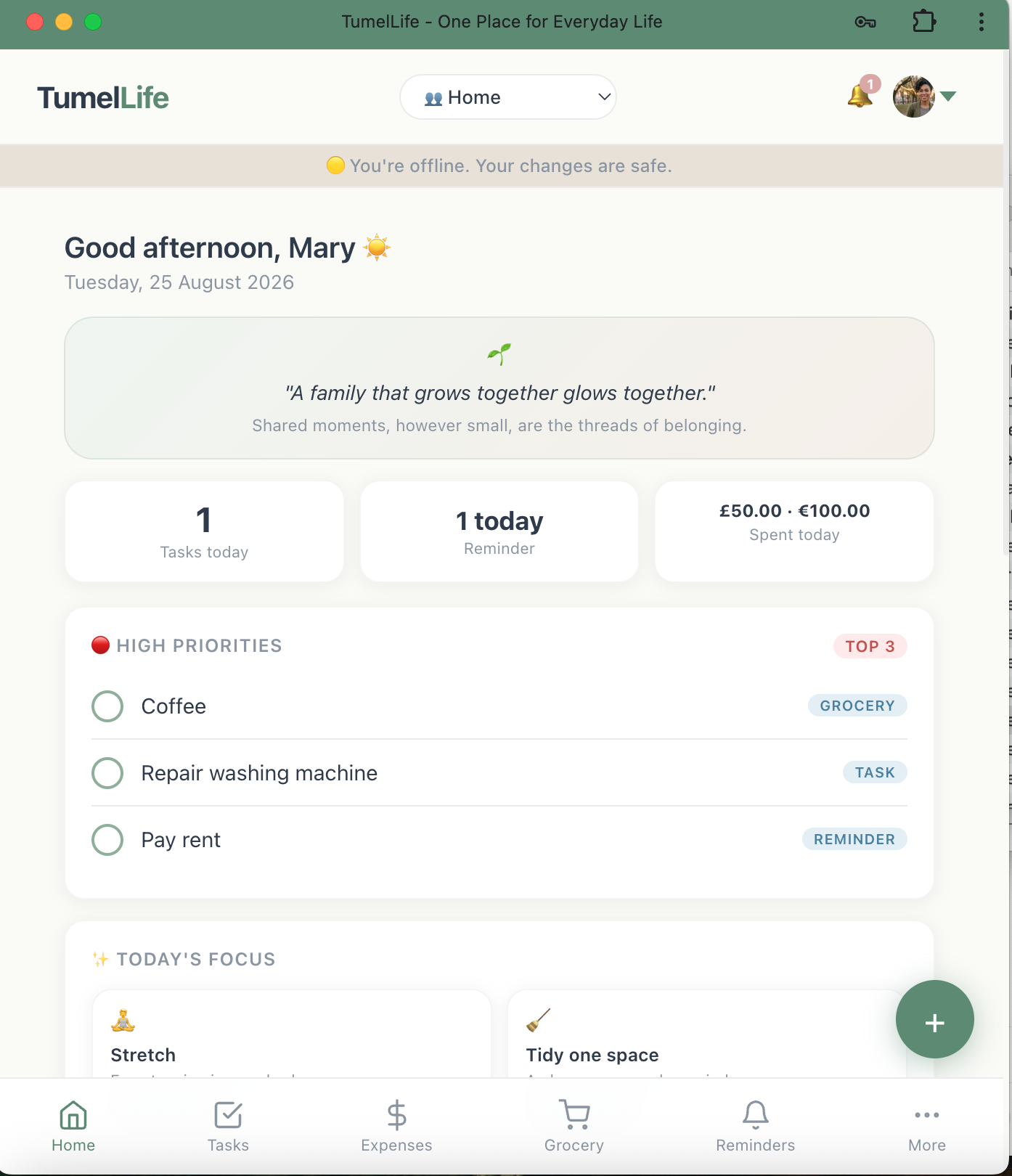
Stop switching between different apps for tasks, recurring reminders, expenses, groceries, notes and everyday plans. TumelLife brings them together in one dashboard, so you can see what matters today, keep track of your spending and preview what is coming tomorrow in just a few seconds.
Use it for yourself, or share tasks, expenses and reminders with your partner, family, friends or small team. Work offline and sync when you are back online.
Already have an account? Sign in

Most people use several different apps just to get through an ordinary day. Here is the difference.
One dashboard instead of several apps.
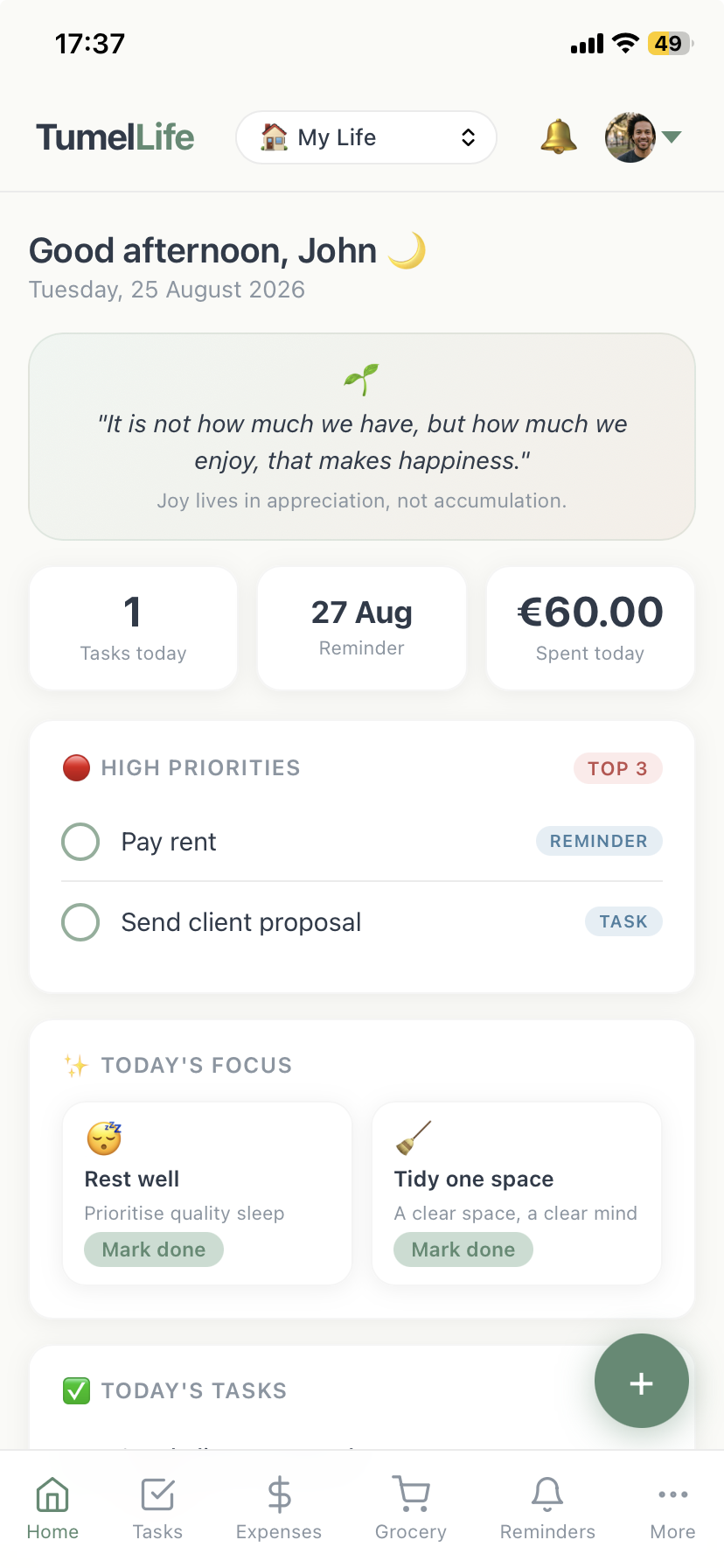
Open TumelLife and see what matters today, what you are spending, what others have shared with you and what is coming tomorrow.
When you open TumelLife, your day is laid out in one place. See your top priorities, today's tasks, recurring reminders and grocery list at a glance, with what you have spent today at the top and a compact Your Money summary showing income, expenses and what is left over this month. Then check Tomorrow's Preview to see what is coming next.
A Moment for You gives you one small, optional suggestion to look after yourself today. Daily Quote gives you a short thought to pause and reflect on. Today's Win gives you a place to notice something that went well.
Money brings your everyday finances together in one simple place, with four clear sections.
See what happened over a period you choose: this week, this month, this year or a custom range.
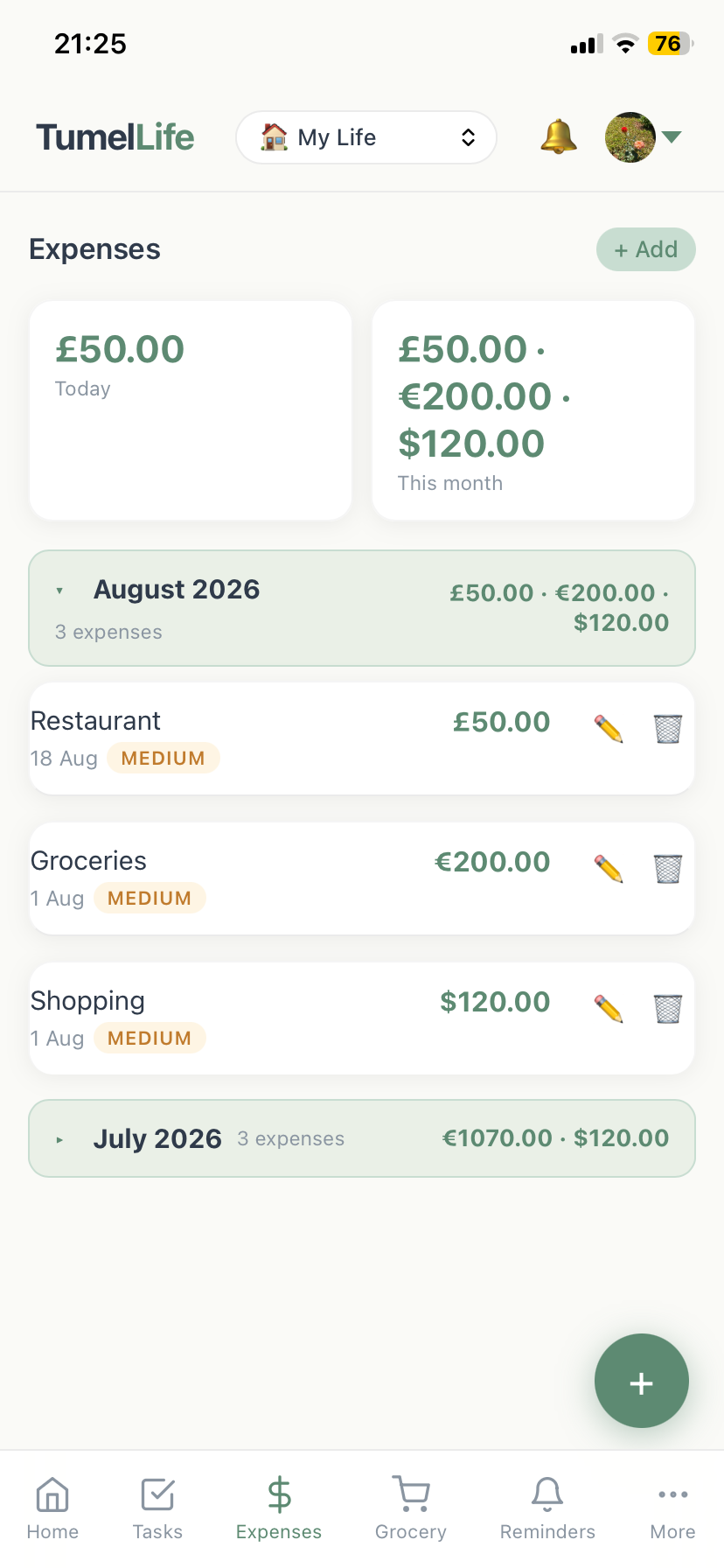
Income $2,500 · Expenses $1,650 · Left over $850 · Saved $500Works exactly as it always has. Record what you spend, sort by category, search, filter by date and look back at previous months to spot patterns.
Record what comes in, from salary, business, freelance work, side income or a source you name yourself, with a note about how often it arrives.
Set a goal with a target, add contributions as you go, and see your progress and what is left. Every contribution is kept.
Emergency Fund · $750 saved of $3,000 · $2,250 to goLeft over is not the same as saved. Left over is simply what remains after your expenses. Saved is money you deliberately put into a savings goal. TumelLife keeps the two separate, because having money left over does not mean you have saved it.
If you work with more than one currency, TumelLife keeps each one separate. It will never add dollars and euros together and call it a total. Sharing Money with your partner, family or small team keeps shared costs together and shows who added what.
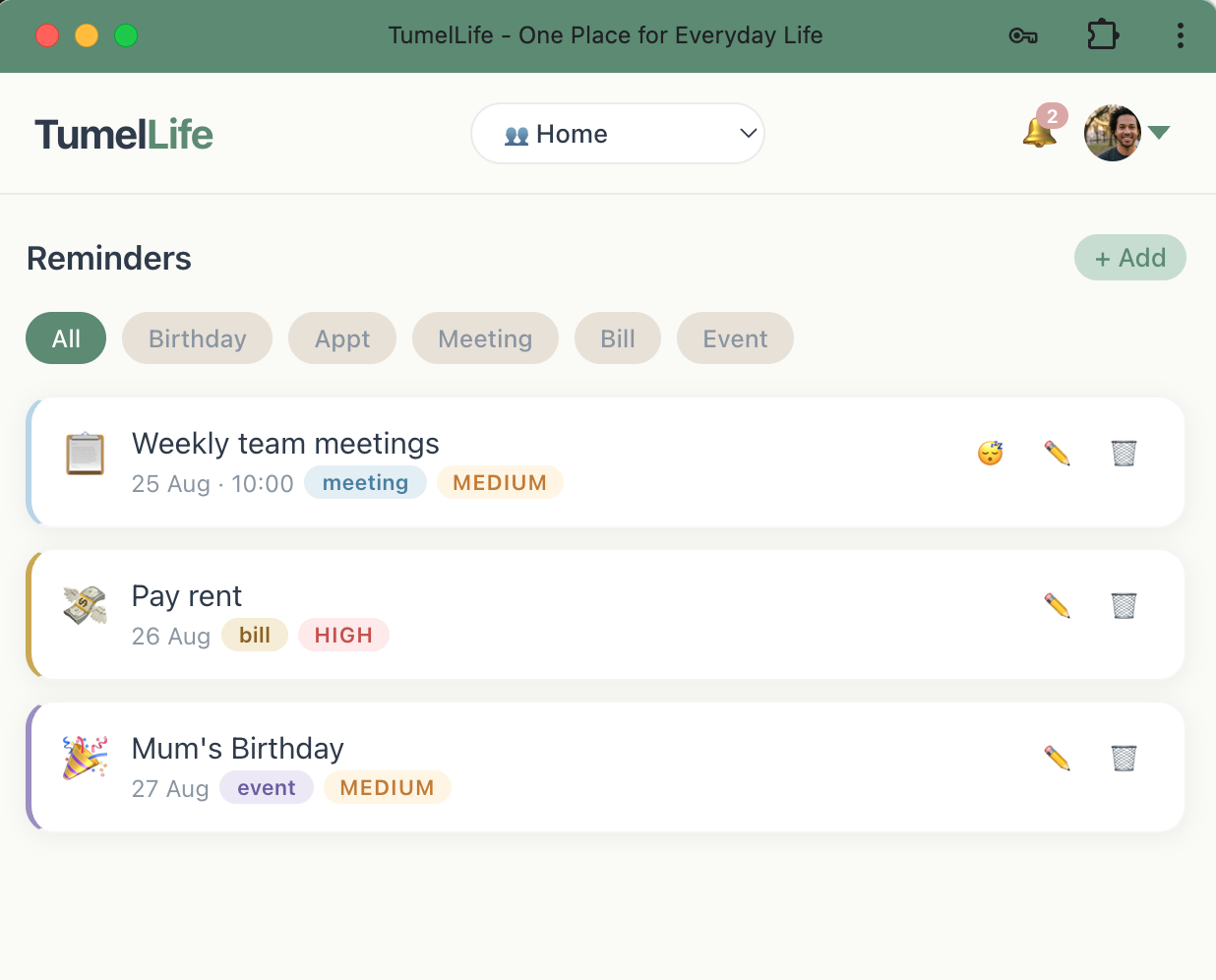
TumelLife supports daily, weekly, monthly and yearly recurring reminders. In a shared workspace, you choose who receives each one. No more texting the same reminder to the same people every week.
Each person receives the reminder on their own device. No group chats needed.
One thing to know about notifications
Your device asks your permission before any app can send you notifications, and TumelLife is no different. The first time you set a reminder, allow notifications when your phone or browser asks. Without that, TumelLife still keeps everything for you, it simply cannot alert you.
You will want notifications on for:
It is entirely your choice, and you can change it later in your device settings. If you said no and changed your mind, our notifications guide walks you through turning it back on.

Each one works simply. They all live in the same app.
Track what needs to get done.
One-time or recurring, personal or shared.
Keep information where you can find it.
Expenses, income and savings goals in any currency.
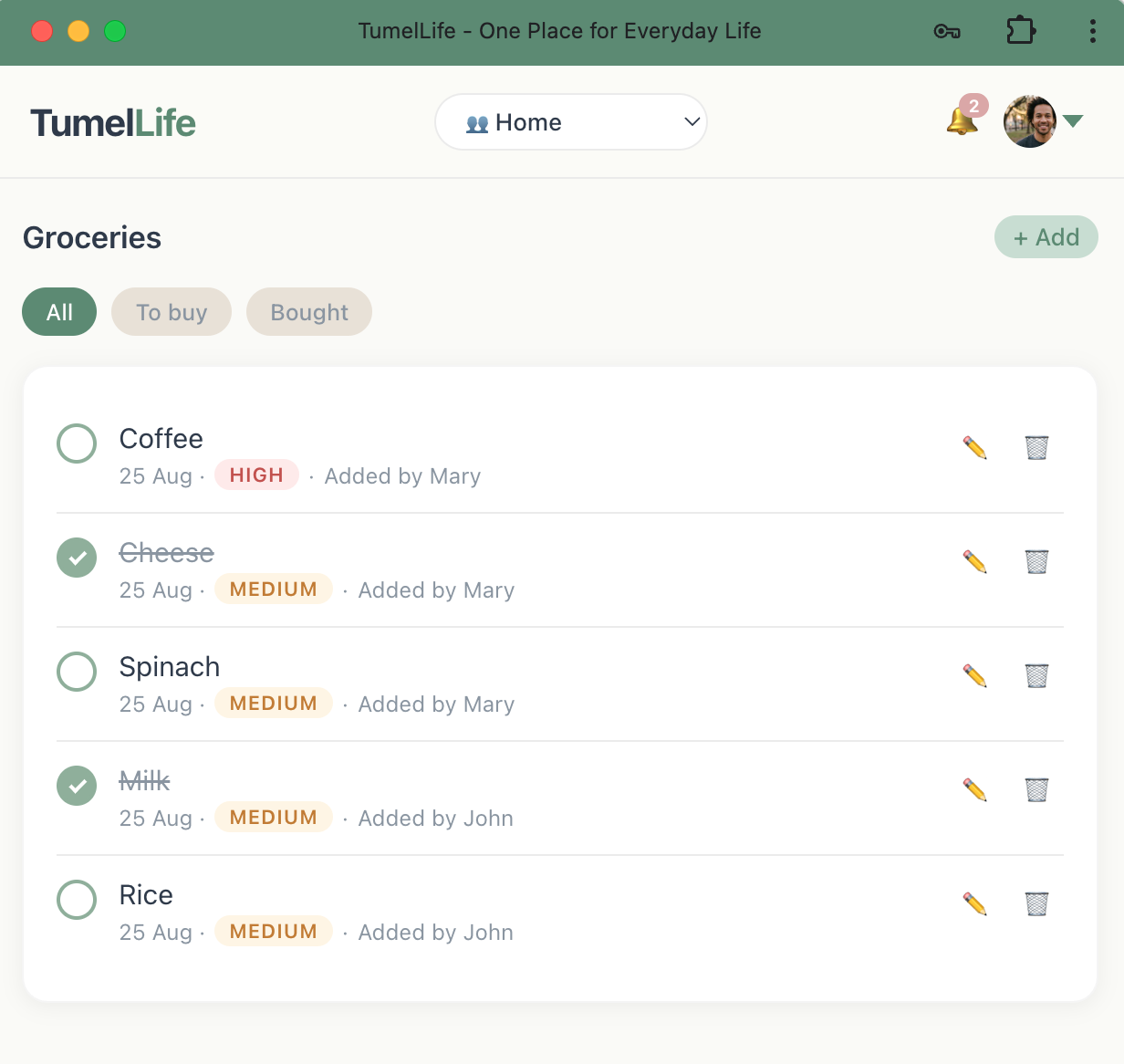
A simple list, shared if you need it to be.
Plan meals for the week ahead.
Organise household routines together.
See what changed in shared spaces.
TumelLife works for one person. It also works when people want to organise something together. Use it on your own, or create a shared workspace with the people who need to stay organised with you.
Your personal space. Private tasks, reminders, notes, expenses and plans that only you can see. Nothing is shared unless you choose to share it.
Planning your day alone, sharing expenses with your partner, organising groceries with your family, or keeping a small team on the same page. Each workspace is separate, and you control who is in it.

Once you have signed in and the app has loaded, you can keep using TumelLife without a connection. Your changes are saved and sync automatically when you reconnect.
Add tasks, notes, reminders, expenses and groceries while offline.
Changes sync when your connection returns, without any extra step.
Shared updates reach other members once you are back online.
Your optional TumelLife AI assistant can help you organise tasks, reminders, groceries, expenses, income, savings and more. Simply type or speak naturally. TumelLife always keeps you in control and asks before making changes to your information.
TumelLife brings a few small daily features alongside your tasks and reminders, giving you a moment to notice what matters beyond your to-do list.
A short thought to begin the day and give you a moment to pause.
One small, optional invitation each day to look after yourself, from taking a short walk to calling someone you care about. Never a task, never a demand.
A place to notice something that went well, whether you finished something important or simply made time for yourself.
Your personal workspace is private. Shared workspaces are available only to the people you invite. TumelLife does not sell your personal information, and access is protected through authentication and workspace permissions.
TumelLife installs from your browser and works like an app on your phone, tablet or computer.
Native iPhone and Android apps are coming. The web version works on all devices today.
TumelLife is a life management app that brings tasks, reminders, expenses, groceries, notes, meals, cleaning schedules and shared plans into one daily dashboard. Use it privately or share workspaces with the people around you.
Yes. TumelLife is currently free to use. A premium plan with additional features may be introduced in the future, but the core features will remain free.
Go to tumellife.app and tap "Create an account". Enter your name, email and a password, and your personal workspace ("My Life") is created automatically. You can also start here at tumellife.com to read about the app first, then sign up when you are ready. On a phone, open tumellife.app in your browser, then use Share and "Add to Home Screen" so it opens like an app.
Yes. On iPhone, open tumellife.app in Safari and tap "Share" then "Add to Home Screen". On Android, tap the install prompt or use the browser menu.
Manage daily tasks, set recurring reminders with push notifications, track expenses in multiple currencies, keep grocery lists, write notes, plan meals, schedule cleaning tasks, and share any of these with your partner, family or team.
TumelLife includes a built-in AI assistant that can add tasks, expenses, groceries and reminders using text or voice. You can also ask it about your spending. The AI always asks for confirmation before making any changes.
Yes. Tap the microphone button in the AI assistant panel to speak your request. TumelLife will transcribe it and process it just like a typed message.
Yes. Each expense keeps its original currency. TumelLife shows each expense in the currency you entered and calculates totals per currency.
Money brings your everyday finances together in one place. It has four parts: Overview shows income, expenses and what is left over for a period you choose. Expenses works as it always has. Income records what comes in. Savings holds your savings goals and the contributions you make toward them.
Left over is simply your income minus your expenses. Saved is money you have deliberately recorded as a contribution to a savings goal. Having money left over does not mean you have saved it, so TumelLife keeps the two separate and never turns one into the other.
Create a goal with a name, a target amount and a currency, then add contributions as you go. TumelLife shows how much you have saved, your progress and how much is left. Every contribution is kept, so you can look back at what you put away and when. In a shared workspace each contribution shows who added it.
You can record how often income arrives, such as monthly or weekly, and it is shown on the entry. TumelLife does not yet create future income records automatically, so each payment you actually receive should be recorded when it arrives. This keeps your totals based on real records rather than estimates.
Yes. TumelLife supports daily, weekday, weekly, monthly and yearly recurring reminders. Set it once and it fires on the schedule you choose.
Yes. In a shared workspace you choose who is notified. Everyone selected receives the reminder on their own device at the same time.
Your dashboard shows everything important for today at a glance: your top priorities, today's tasks, upcoming reminders, spending summary, a moment for you, and a preview of tomorrow.
Individuals, couples, families, friends, housemates, charities and small teams. Anyone who wants everyday organisation in one place.
You can create additional workspaces and invite people by email. Everyone in the workspace sees the same tasks, expenses, reminders and other items.
Open a shared workspace, go to Profile, enter their email address and tap "Invite Member". They will receive an invitation link to join your workspace.
"My Life" is your private personal workspace. Only you can see it. It is created automatically when you sign up and cannot be shared or deleted.
Yes. In shared workspaces, every item shows "Added by [name]" so you always know who created it.
Yes. Your personal "My Life" workspace is completely separate. Items in shared workspaces are visible to all members, but your personal workspace is never shared.
Yes. After your first sign-in, TumelLife works offline. You can view your data, create tasks, add expenses and make changes. Everything syncs automatically when your connection returns.
Yes. TumelLife uses Firebase Authentication and Firestore with strict security rules. Your data is encrypted in transit, stored securely, and only accessible to you and the members of your shared workspaces.
On the sign-in screen, enter your email and tap "Forgot password?". You will receive a reset email from TumelLife with a secure link to set a new password.
Your changes are saved locally on your device and sync to the cloud as soon as you are back online. Nothing is lost.
The core features will remain free. A premium plan with additional features like higher AI usage limits and advanced insights may be introduced in the future.
Yes, native apps are planned. The current web version works on all devices today and can be installed on your home screen.
Visit the Help Centre at tumellife.com/help/ or use the "Help & Support" button inside the app.
Create a free account and see what your day looks like when everything is in one place.